
Back to Blogs
Eric Eden is a B2B marketing leader specializing in AI and SaaS. He’s a CMO, advisor, and growth strategist who has built nine-figure pipelines and helped drive eight successful VC- and PE-backed exits.
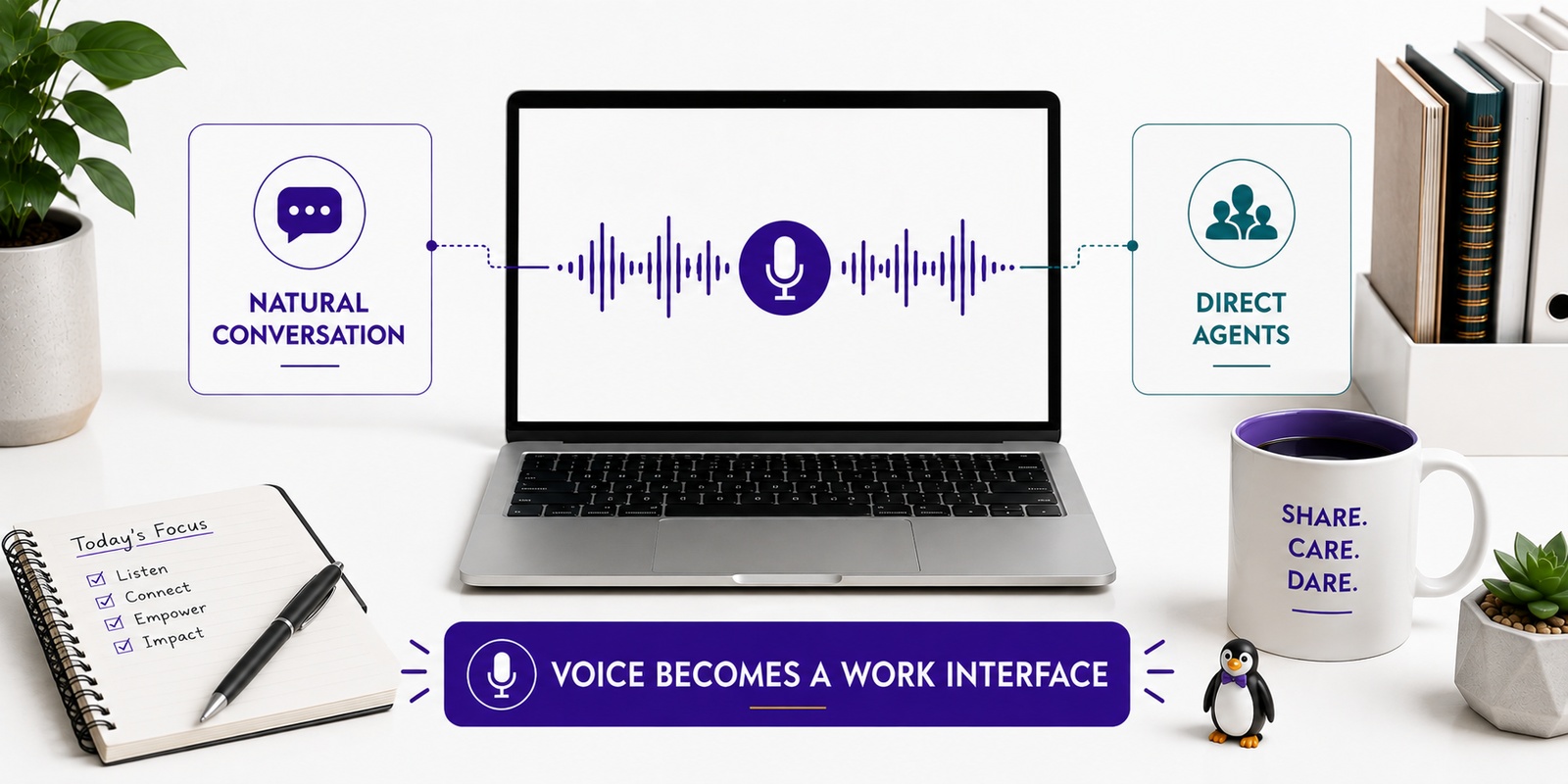
ChatGPT Voice now uses GPT-Live to support more natural, interruptible conversations while connecting speech with search, memory, visual answers, Work, and Codex. Eric Eden explains how marketers can use it to think, rehearse, research, direct agents, and review work hands-free, with 20 prompts, 10 practical tips, key limitations, and interview practice for CMO candidates today.
The new version is powered by GPT-Live, which can listen and speak at the same time, let you interrupt naturally, wait while you think, search the web, use memory, show visual answers, and hand difficult questions to deeper reasoning in the background.
The biggest upgrade is on desktop. You can now use Voice inside Chat, ChatGPT Work, and Codex. That means you can talk through an idea, launch a research or coding task, check what your agents are doing, redirect them, and hear the results without returning to the keyboard.
There are nine remastered voices, three Voice modes, and optional Instant, Medium, and High intelligence levels. On Mac, you can also pull the Voice orb out over your desktop and drag the floating control wherever you want it.
My blunt take: this is the first version of ChatGPT Voice that feels less like a novelty and more like a new interface for computing.
ChatGPT Voice lets you talk to ChatGPT and hear its answer while the response also appears as text in the chat.
The latest experience, called Live, is powered by GPT-Live. Unlike older turn-by-turn voice systems, GPT-Live uses a full-duplex architecture. In plain English, it can listen and speak at the same time.
That creates several important differences:
OpenAI says GPT-Live was strongly preferred over the previous Advanced Voice Mode in its evaluations of turn-taking, interruptions, flow, and naturalness. It also performed better on difficult science questions, web research, and multi-step support tasks.
Think of the new Voice system as two layers:
In ordinary Live conversations, OpenAI launched GPT-Live with GPT-5.5 handling harder work in the background. In desktop Work and Codex, GPT-Live manages the conversation while GPT-5.6 Terra starts and coordinates agent tasks in the app.
This matters because Voice does not have to choose between being fast and being smart. It can stay responsive while heavier work continues elsewhere.
You may see up to three options under Settings → Voice:
One confusing detail: ordinary Live in Chat does not initially support every connected app or plugin.
Voice inside desktop Work or Codex is different. It can use the tools and permissions available to the selected mode, including supported connected tools.
You can also turn on Background conversations so Voice keeps working while you use another app or lock your phone. Supported versions can open directly into Voice, and ChatGPT Voice is also available through Apple CarPlay.
The new desktop experience is available on macOS and Windows.
For Voice in Work or Codex, the task needs to begin in Voice mode. If a task began as text, you may only see dictation. You can reopen a previous Voice conversation and select Start voice chat to resume it.
You can create a Voice hotkey under Settings → Voice → Voice chat hotkey. OpenAI does not document a default shortcut.
On macOS, the small Voice orb can live outside the main app window.
Drag the orb out over the desktop and place it next to the document, browser, or code editor you are using. You can move it wherever you want and use its controls to mute your microphone, mute ChatGPT, or end the conversation.
If your app version does not show the floating orb, update the desktop app. You can also pop an active chat into a separate window and turn on Always on top.
That tiny interaction is more useful than it sounds. Voice stops feeling like a destination you visit and starts feeling like a companion that sits beside your work.
On macOS, turn on Screen context under Settings → Voice. Then bring the relevant app to the front and say:
Take a look at this and tell me what you notice.
ChatGPT can capture an appshot of the frontmost window and use both the image and accessible text as context.
Important privacy detail: accessible text may include material outside the visible scroll area. Do not share a window containing confidential information unless you intend to provide it.
Open Settings → Voice → Voice to preview and select:
Changing voices during a conversation starts a new Voice call inside the same chat.
You can also change your preferred language under Settings → Voice → Language or ask Voice to switch languages during a conversation.
The honest answer is that OpenAI has not published usage data or an official popularity ranking.
If I had to name the safest community favorite, I would pick Juniper. It has been one of the most consistently discussed voices in community threads, and its open, upbeat delivery works across casual conversation, brainstorming, and long sessions without sounding too formal.
Cove is probably the strongest alternative for serious work because it sounds composed and direct.
Treat that as a community-informed estimate, not a measured fact. GPT-Live also remastered all nine voices, so old polls do not perfectly represent the new versions.
The right answer is to preview all nine with the same paragraph and choose the one you can comfortably hear for an hour.
Voice is excellent when your thinking is not yet organized.
Say:
I am going to ramble for five minutes. Do not respond until I say “organize it.” Then turn everything into a one-page brief with the objective, audience, core insight, decisions, risks, and next actions. Ask me three questions about anything important that is still unclear.
Why it works: Speaking preserves half-formed thoughts that you might edit out too early when typing.
Do not ask Voice to agree with you. Ask it to create productive friction.
Say:
Act as a skeptical but fair strategist. Interview me about this idea one question at a time. Challenge vague claims, identify hidden assumptions, and do not let me move on until I give you evidence. At the end, tell me whether the idea is strong, fixable, or fundamentally weak.
Why it works: The interruptible format feels much more like a real debate than exchanging long blocks of text.
Say:
Role-play a skeptical CFO considering our product. Do not make the conversation easy. Raise realistic objections about cost, implementation, risk, and ROI. Stay in character until I say “debrief.” Then score my answers, identify the weakest moment, and make me try that section again.
Pro move: Ask Voice to change tone or speed between rounds.
Say:
I have a meeting with [person or team] about [topic]. Interview me to uncover what outcome I need, what they probably care about, and where the discussion could go wrong. Then give me a 60-second opening, five questions to ask, and three concessions I should not make too early.
Use this when you do not want to stare at another screen before a meeting.
Switch to Work in the desktop app and say:
Start a new Work task. Research [topic] using current, credible sources and create a finished [report, presentation, spreadsheet, or plan] for [audience]. The deliverable must include [requirements]. Show me your plan first, flag any decisions you need from me, and keep working after I answer.
Why it works: Voice captures the outcome and context. Work handles the long execution.
The best Work prompts include six things: outcome, audience, source requirements, constraints, deliverable format, and acceptance criteria.
Say:
Check every active Work and Codex task. Give me a spoken stand-up with four sections: completed, in progress, blocked, and decisions needed. Keep it under two minutes. Then ask which task I want to redirect first.
This is one of the most important new capabilities. Voice becomes the manager while multiple agents do the work.
On Mac with Screen context enabled, open a slide, landing page, ad, or spreadsheet and say:
Take a look at this. First tell me what you think the creator wants the viewer to notice. Then tell me what the viewer will actually notice. Identify the three biggest problems and recommend the smallest changes with the highest impact.
This is especially useful for design reviews because you can point the conversation at the thing you are already viewing.
Switch to Codex and say:
Inspect this repository and start separate tasks for these three goals: investigate the authentication bug, review the open pull request for regression risks, and identify missing tests. Do not change production code until you report your findings. Give me a status update when any task is blocked or ready for review.
Then steer it:
Pause the pull request review. Prioritize reproducing the bug. Tell the testing task to focus on the failure path you just found.
This is better than dictating code. Use Voice to direct intent, priorities, and tradeoffs. Let Codex work in the repository.
Say:
Translate everything I say in English into conversational Spanish, and translate every Spanish reply back into English. Preserve tone rather than translating word for word. If I make a recurring mistake, wait until the conversation ends and then coach me on it.
Or use teaching mode:
Speak to me only in beginner Italian. If I get stuck, give me a hint before giving me the answer. Keep a private list of my mistakes and quiz me on them at the end.
Say:
Read this draft to me one section at a time. After each section, pause and ask whether I want to keep it, shorten it, challenge it, or rewrite it. Track every decision and produce the revised draft only after we finish the review.
Hearing writing exposes repetition, awkward rhythm, and weak logic that your eyes often skip.
Narrate me making scrambled eggs like the final mission in a $200 million action movie. Escalate the danger every time I touch the stove. If I burn the toast, treat it as an international incident.
You are the union representative for my French bulldog. Conduct a formal grievance hearing about working conditions in this house, including treat compensation, nap protections, and management’s refusal to share pizza.
I am the CEO of a failing startup pivoting into artisanal lemonade powered by blockchain. Play a room full of hostile reporters. Ask increasingly brutal questions until I either save the company or accidentally confess to fraud.
Be my dungeon master. My apartment is an ancient cursed kingdom. Dirty laundry is an undead army, the dishwasher is a sleeping dragon, and the junk drawer contains a forbidden artifact. Give me one quest at a time until the kingdom is clean.
Commentate while I fold laundry like it is the final minute of the World Cup. Include instant replays, questionable referee decisions, and an emotional biography of the missing sock.
You are a couples therapist for me and my Wi-Fi router. I feel abandoned whenever it drops the signal. The router feels I bring too many devices into the relationship. Help us rebuild trust.
Run a Supreme Court trial to decide whether pineapple belongs on pizza. Play the judge, attorneys, witnesses, and one wildly unqualified food influencer. I will be the jury.
Review my business idea as three investors: a ruthless Roman emperor, a confused Victorian industrialist, and a 22-year-old venture capitalist who has never experienced a recession. Let them argue, then force them to agree on one recommendation.
Run an emergency board meeting where my coffee maker, calendar, bank account, and alarm clock review my performance as CEO of my life. Make each director brutally honest and give me a 30-day turnaround plan.
Host an eight-part investigative podcast proving that missing socks are being stolen by a secret logistics startup operating inside dryers. Interview unreliable experts and end every episode with an absurd cliffhanger.
Start with:
Wait until I say “respond.” Until then, only listen and give brief acknowledgments.
GPT-Live is better at waiting, but long pauses or background noise can still trigger a response.
Tell it how to answer before the conversation gets busy:
Keep spoken answers under 30 seconds. Lead with the conclusion. Ask one question at a time. Put detailed notes in the text transcript.
If your account includes it, open Settings → Voice → Intelligence:
Do not try to dictate a perfect prompt. Say the goal, context, constraints, and definition of done. Let Voice organize the language.
Live works inside the normal chat. You can talk, type a precise detail, or attach an image without starting over.
Voice uses your device or browser time zone to interpret words such as “today” and “tomorrow.” For anything important, say the exact date, location, and time zone.
Full duplex does not make physics disappear. Background speech, overlapping audio, and weak microphones can still cause interruptions. Headphones and voice isolation help.
The transcript may not reproduce every spoken word exactly, especially when people talk over each other. Use it as a working record, not a legal transcript.
Voice can move quickly, especially with Work, Codex, and computer use. Do not casually approve destructive code changes, purchases, messages, or sensitive actions just because the conversation feels natural.
Ask for a summary of the exact action and target first.
ChatGPT Voice is impressive, but it is not magic:
The more consequential the action, the more you should slow down, inspect the result, and verify it.
Most people will use Voice to ask questions while driving or cooking. That is useful.
Typing forces you to package your thinking before the AI receives it. Voice lets you expose the thinking process itself: the uncertainty, changes of direction, half-formed ideas, and priorities that are hard to capture in a polished prompt.
Add Work and Codex, and Voice becomes more than an input method. It becomes a management layer for AI agents.
The new experience is powered by GPT-Live, which can listen and speak at the same time, handle interruptions and pauses more naturally, and delegate harder work to deeper reasoning or search in the background.
Marketers can use it to organize ideas, challenge strategies, rehearse calls and interviews, prepare for meetings, launch Work tasks, coordinate agents, critique screens, translate conversations, and review writing hands-free.
Candidates can ask Voice to play a skeptical CEO, CFO, CRO, recruiter, hiring manager, or board member. It can raise objections, challenge vague answers, stay in character, and provide a debrief after the practice session. That makes Voice particularly useful for CMO candidates preparing for interviews.
Yes, in supported desktop experiences. Voice can start and coordinate longer Work and Codex tasks, subject to the user’s plan, permissions, workspace settings, and usage limits.
Voice can mishear users, respond too early, and provide incorrect answers. Transcripts may not reproduce every spoken word, and availability varies across plans, platforms, regions, workspaces, and app versions.
Read Eric Eden’s original ChatGPT Voice guide on Reddit.
CMO Huddles has a dedicated Transition Team for experienced B2B marketing executives navigating what comes next.